A.1 Bring Mixamo Animation to Omniverse
In this part, we are going to show how to bring characters and animation clips from Adobe Mixamo into Omniverse Create
Method one: use omniverse directly
0. Requirements
Warning
Please refer to the licenses (License) if necessary.
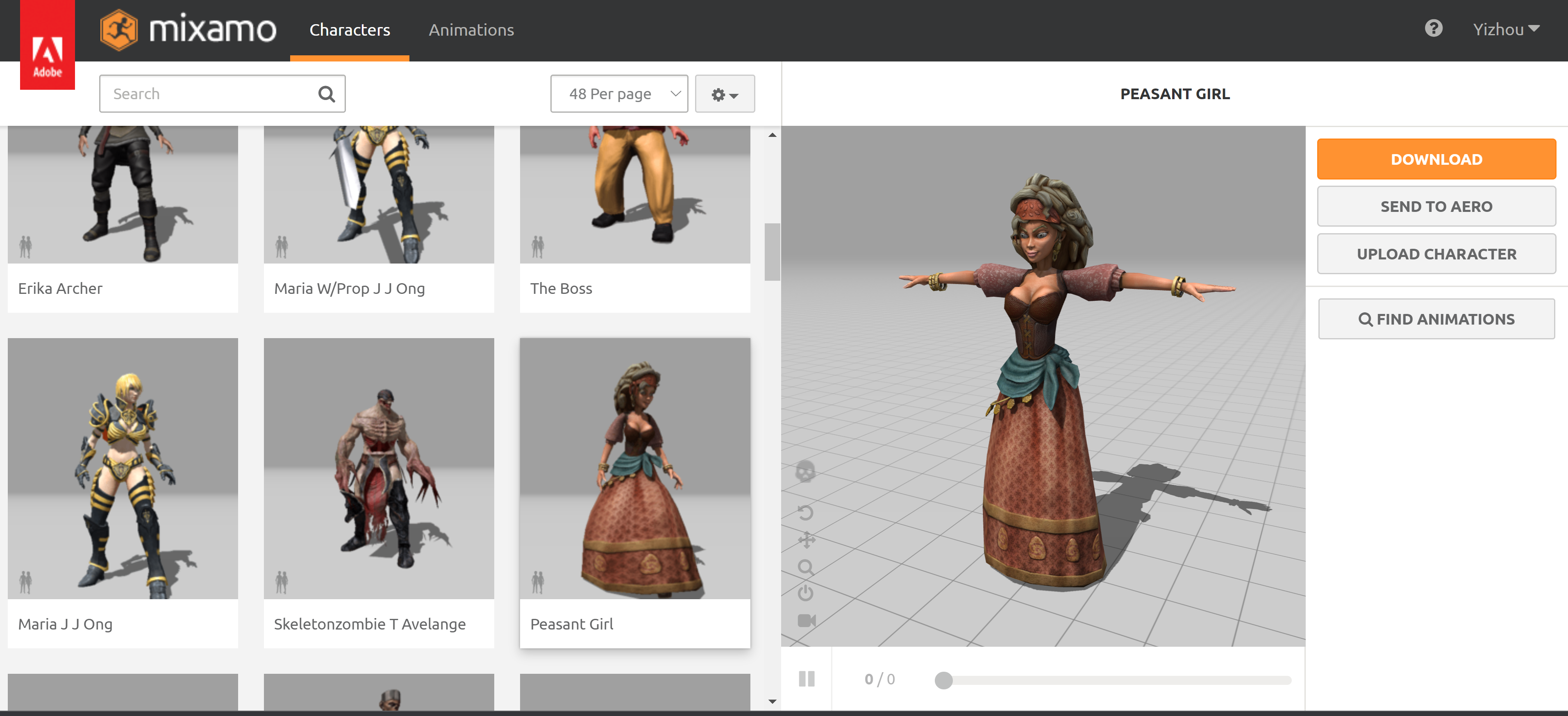
1. Download character & Animation from MIXAMO
Visit Adobe Mixamo, then save the character (e.g. peasant_girl.fbx) and the animation clip (e.g. Silly Dancing.fbx)
Note
The animation clip can be saved with skeletal animation only (without skin).
2. Import FBX into Omniverse
(Optional) to convert FBX into USD, please call the python code:
from pathlib import Path

# character
test_data_path = "E:/researches/VRKitchen2.0-Tutorial/asset/mixamo/peasant_girl.fbx"

# for animation, the same story applies
# test_data_path = "E:/researches/VRKitchen2.0-Tutorial/asset/mixamo/Silly Dancing.fbx"


converter_manager = omni.kit.asset_converter.get_instance()
context = omni.kit.asset_converter.AssetConverterContext()
context.keep_all_materials = True
context.merge_all_meshes = True

# character
output_path = "E:/researches/VRKitchen2.0-Tutorial/asset/mixamo/peasant_girl_converted.usd"
# output_path = "E:/researches/VRKitchen2.0-Tutorial/asset/mixamo/silly_dancing_converted.usd"

task = converter_manager.create_converter_task(test_data_path, output_path, None, context)

success = await task.wait_until_finished()
assert success, "convert not successful"
assert Path(output_path).is_file()
3. Load character and animation into Omnvierse
Finally, load character and select your animation clip in Omnvierse.
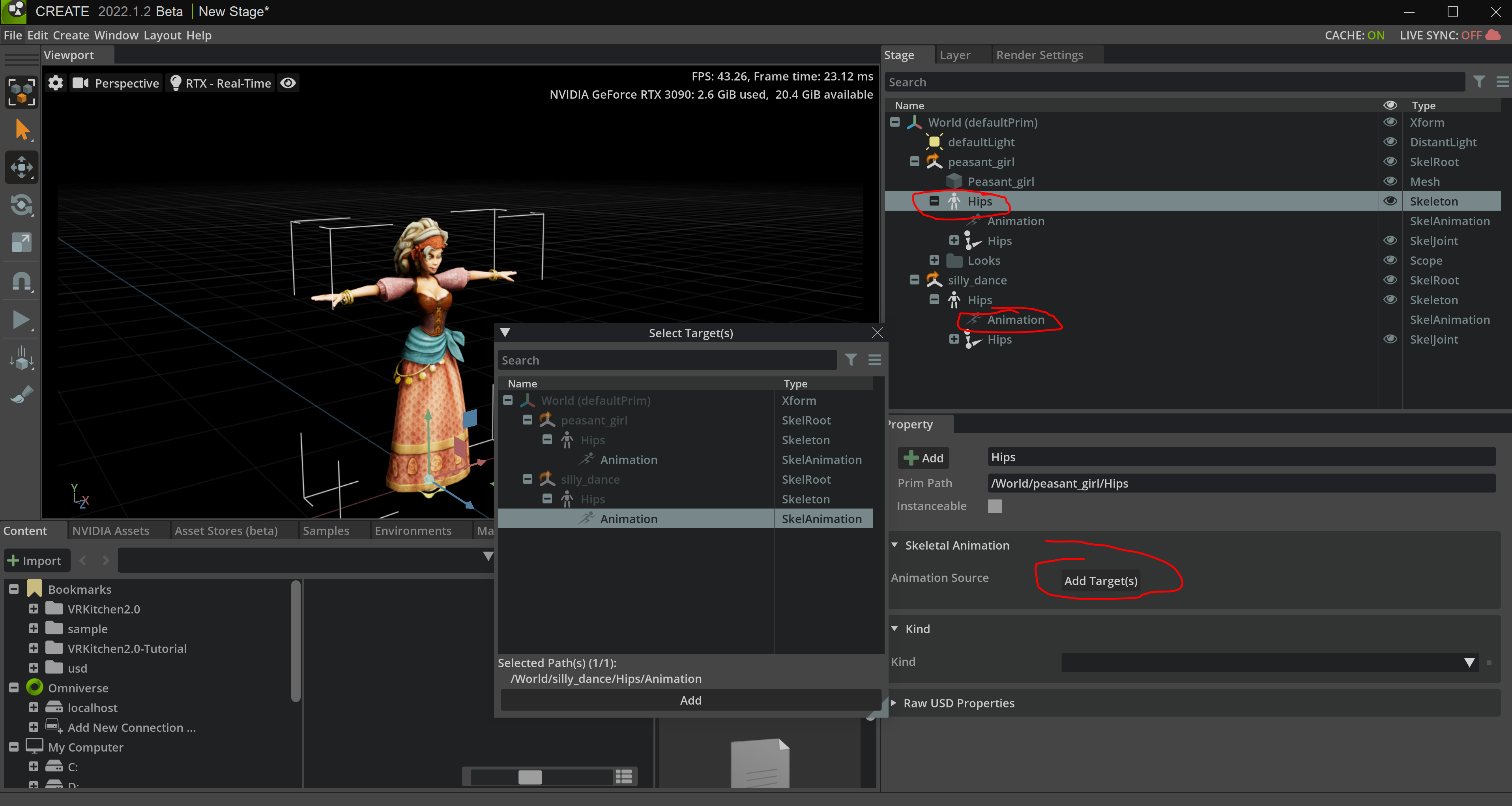
Note
We can open USD file from script
omni.usd.get_context().open_stage_async(output_path)
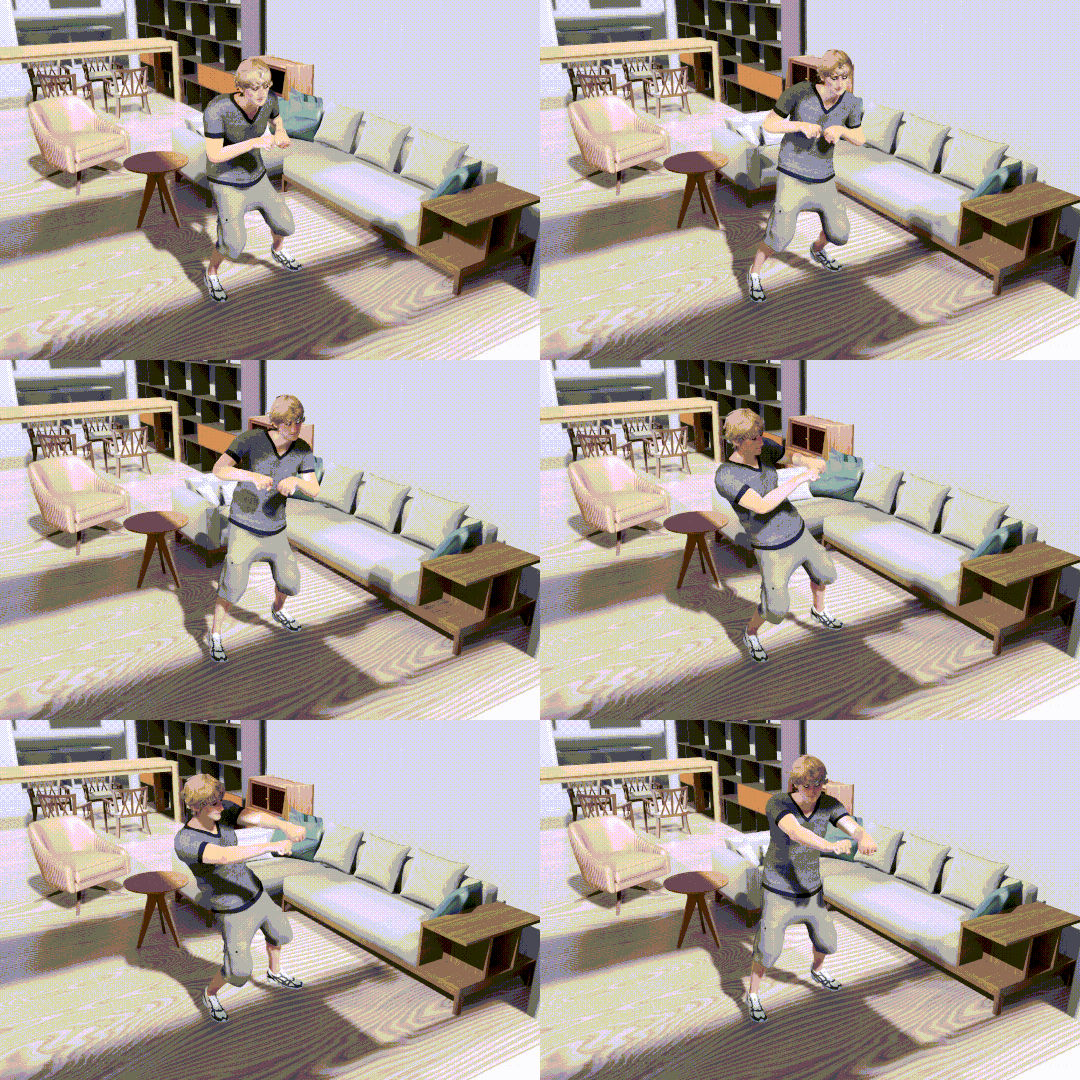
Now you can see the mixamo animation:
Method two: use Maya USD converter
Requirements
Warning
Please refer to the licenses (License) if necessary.
Autodesk Maya 2023 (We the Maya version >= 2022) to import
mayaUSDmodule.
Download character & Animation from MIXAMO
Visit Adobe Mixamo, then save the character (e.g. peasant_girl.fbx) and the animation clip (e.g. Silly Dancing.fbx)
Note
The animation clip can be saved with skeletal animation only (without skin).
Import FBX into maya
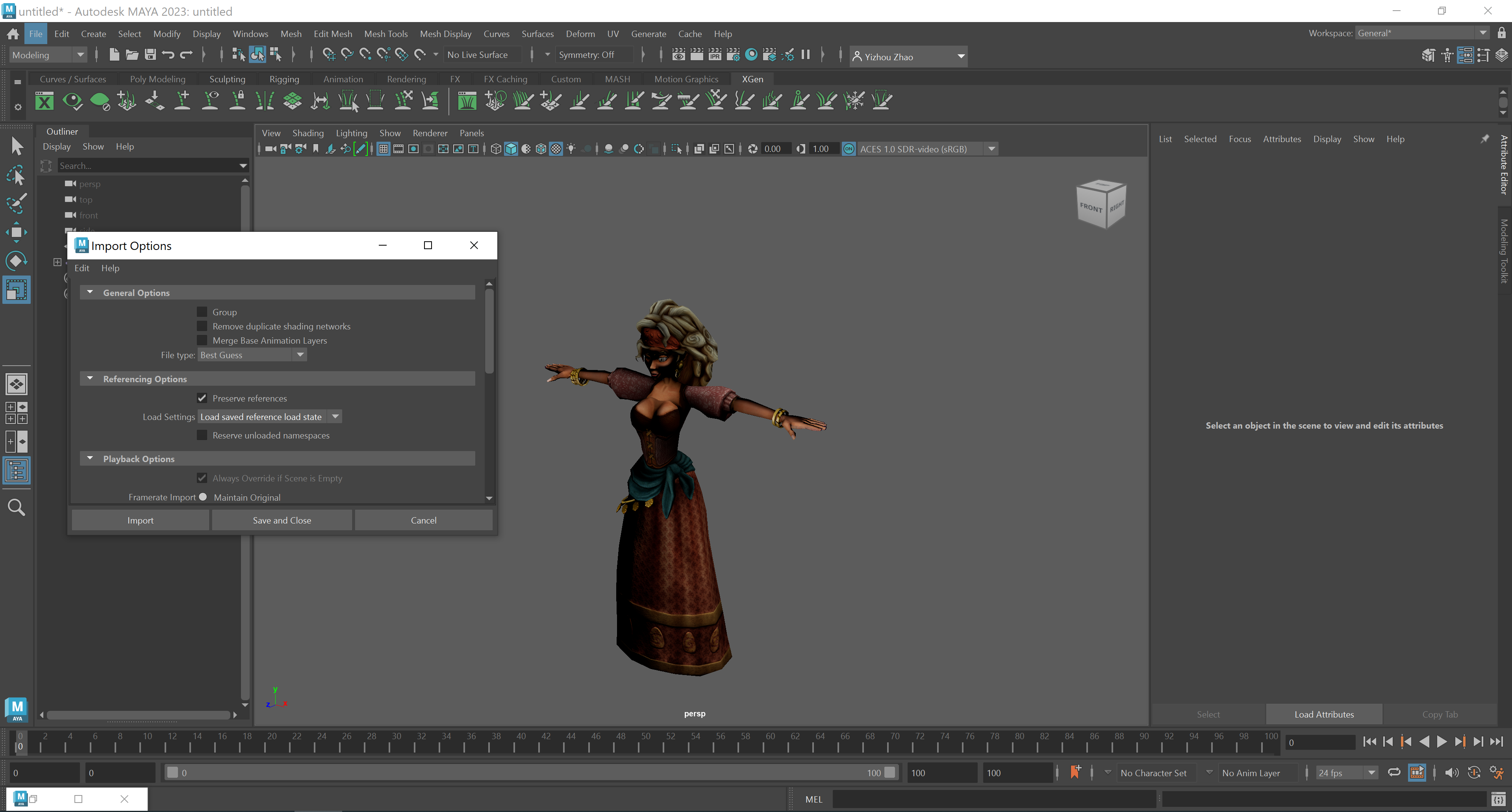
We can also try import with Python code:
import maya.cmds as cmds

fbx_path = "E:/researches/VRKitchen2.0-Tutorial/asset/mixamo/peasant_girl.fbx"
cmds.file(fbx_path, i=True, type='Fbx')
Group character and export
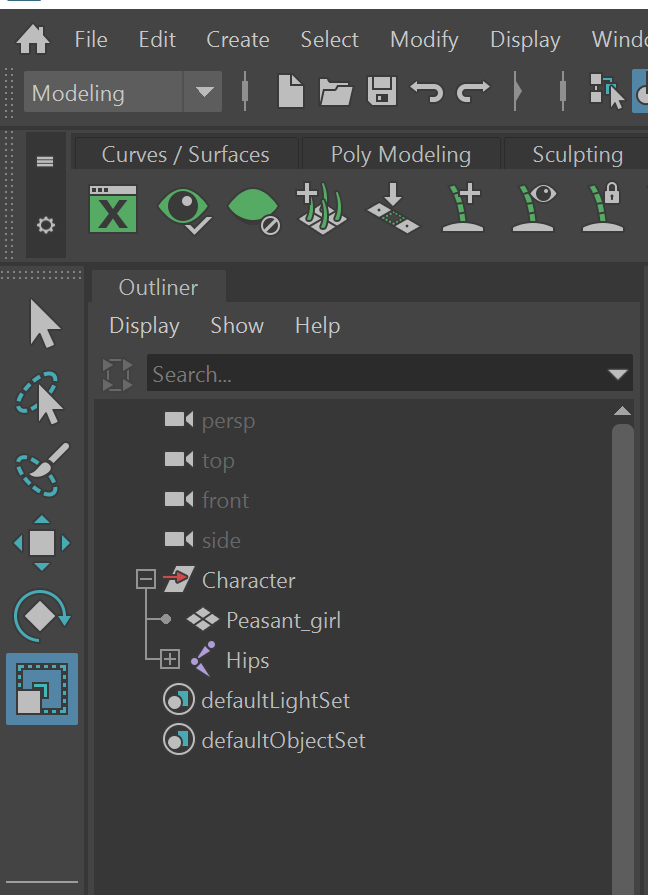
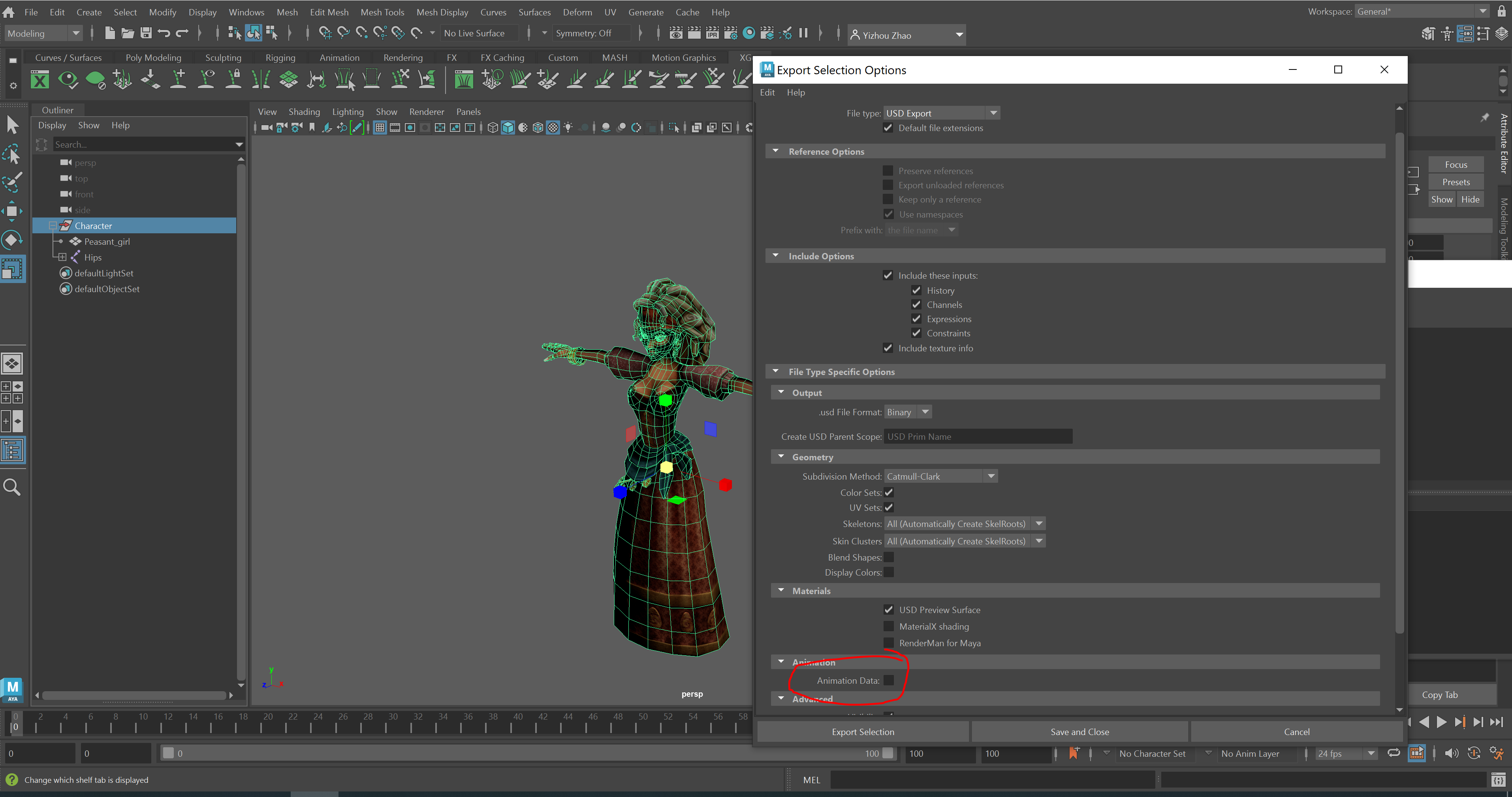
cmds.group( 'Peasant_girl', 'Hips', n='Character')

# file -force -options ";exportUVs=1;exportSkels=auto;exportSkin=auto;exportBlendShapes=0;exportDisplayColor=0;exportColorSets=1;defaultMeshScheme=catmullClark;animation=0;eulerFilter=0;staticSingleSample=0;startTime=0;endTime=115;frameStride=1;frameSample=0.0;defaultUSDFormat=usdc;parentScope=;shadingMode=useRegistry;convertMaterialsTo=[UsdPreviewSurface];exportInstances=1;exportVisibility=1;mergeTransformAndShape=1;stripNamespaces=0" -typ "USD Export" -pr -es "E:/researches/VRKitchen2.0-Tutorial/asset/mixamo/peasant_girl.usd";

options = ";exportUVs=1;exportSkels=auto;exportSkin=auto;exportBlendShapes=0;exportDisplayColor=0;exportColorSets=1;defaultMeshScheme=catmullClark;animation=0;eulerFilter=0;staticSingleSample=0;startTime=0;endTime=115;frameStride=1;frameSample=0.0;defaultUSDFormat=usdc;parentScope=;shadingMode=useRegistry;convertMaterialsTo=[UsdPreviewSurface];exportInstances=1;exportVisibility=1;mergeTransformAndShape=1;stripNamespaces=0"

usd_path = "E:/researches/VRKitchen2.0-Tutorial/asset/mixamo/peasant_girl.usd"
cmds.file(usd_path, force = True, options = options, type="USD Export", exportSelected=True, preserveReferences=True)
Import and export animation
Now we do the same step for the animation clip.
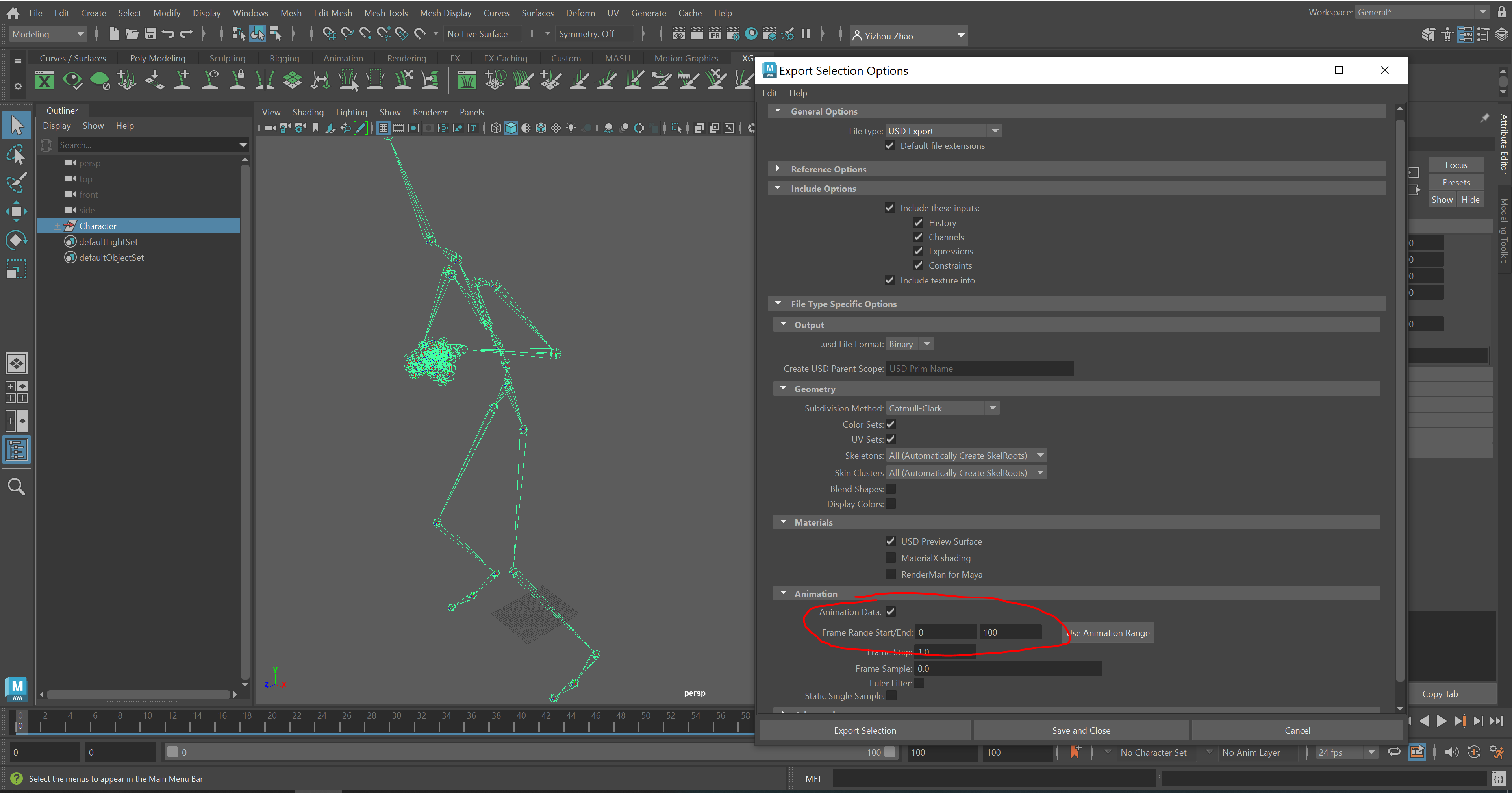
# import animation clip
fbx_path = "E:/researches/VRKitchen2.0-Tutorial/asset/mixamo/Silly Dancing.fbx"
cmds.file(fbx_path, i=True, type='Fbx')

# group skeleton only
cmds.group('Hips', n='Character')

# output animation
max_time = int(cmds.playbackOptions(maxTime=-1, q=True)) # get timeline max time

# file -force -options ";exportUVs=1;exportSkels=auto;exportSkin=auto;exportBlendShapes=0;exportDisplayColor=0;exportColorSets=1;defaultMeshScheme=catmullClark;animation=1;eulerFilter=0;staticSingleSample=0;startTime=0;endTime=100;frameStride=1;frameSample=0.0;defaultUSDFormat=usdc;parentScope=;shadingMode=useRegistry;convertMaterialsTo=[UsdPreviewSurface];exportInstances=1;exportVisibility=1;mergeTransformAndShape=1;stripNamespaces=0" -typ "USD Export" -pr -es "E:/researches/VRKitchen2.0-Tutorial/asset/mixamo/silly_dance.usd";

options =f";exportUVs=1;exportSkels=auto;exportSkin=auto;exportBlendShapes=0;exportDisplayColor=0;exportColorSets=1;defaultMeshScheme=catmullClark;animation=1;eulerFilter=0;staticSingleSample=0;startTime=0;endTime={max_time};frameStride=1;frameSample=0.0;defaultUSDFormat=usdc;parentScope=;shadingMode=useRegistry;convertMaterialsTo=[UsdPreviewSurface];exportInstances=1;exportVisibility=1;mergeTransformAndShape=1;stripNamespaces=0"

usd_path = "E:/researches/VRKitchen2.0-Tutorial/asset/mixamo/silly_dance2.usd"
cmds.file(usd_path, force = True, options = options, type="USD Export", exportSelected=True, preserveReferences=True)
Load character and animation into Omnvierse
Finally, load character and select your animation clip in Omnvierse.
Now you can see the mixamo animation: